Spam filters have gotten aggressive. They evaluate everything from your domain's reputation to the HTML structure of your message. One wrong move, a missing authentication record, a sketchy link, a bloated image-to-text ratio, and your email gets buried. For sales teams running outbound campaigns, this isn't just annoying. It's lost revenue and wasted effort at scale.
At Vedain CRM, we built features like Email Warmup and automated email sequences specifically because we've seen how deliverability issues derail outreach. Our platform helps sales teams send emails that actually reach inboxes, but tools alone aren't enough. You also need to know what triggers spam filters so you can avoid those traps entirely.
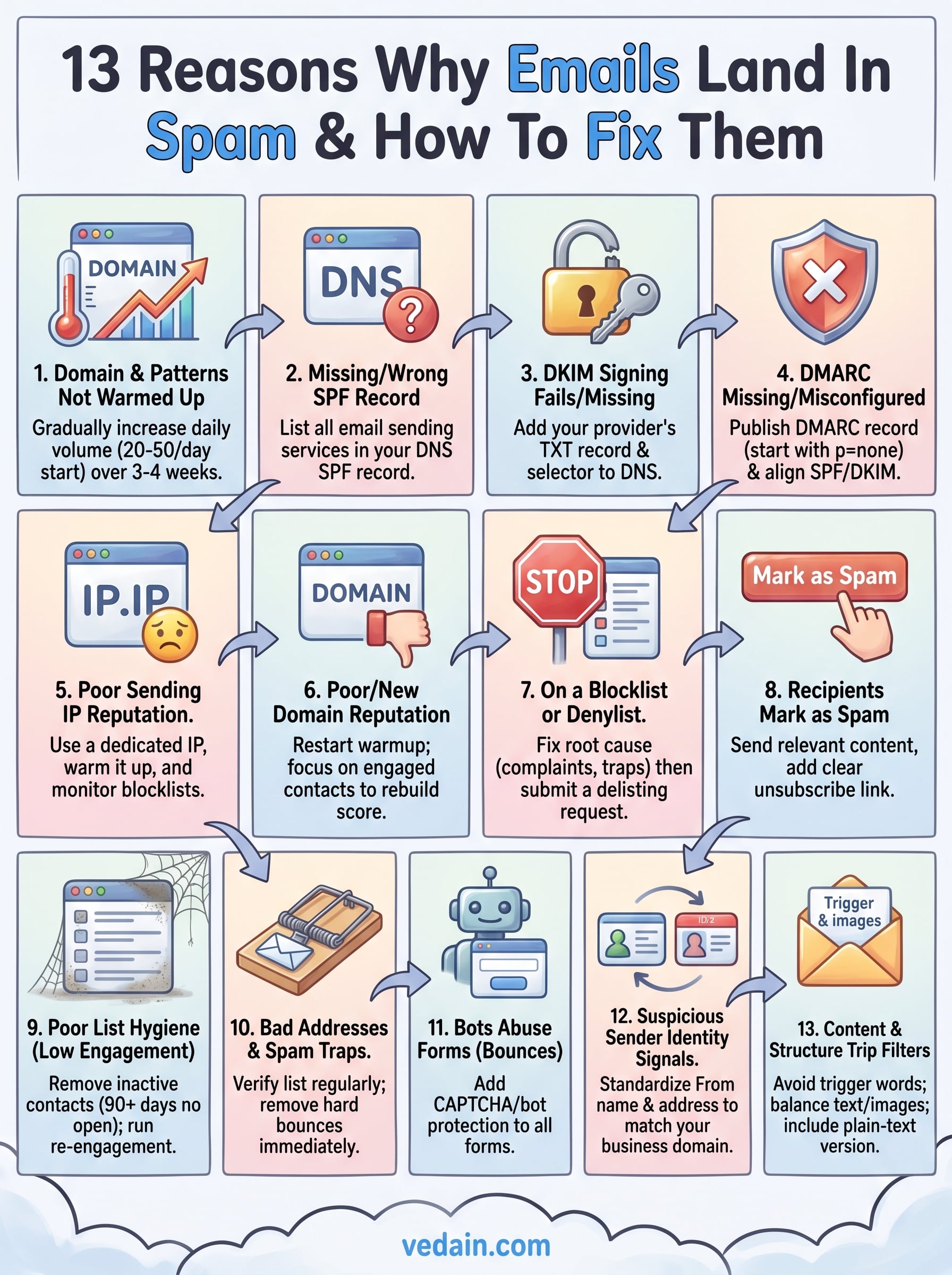
This article breaks down 13 specific reasons your emails might be landing in spam, from technical misconfigurations to content mistakes. Each one comes with a clear fix you can apply right away. Whether you're sending cold outreach or nurture campaigns, this guide will help you diagnose the problem and get your messages where they belong.
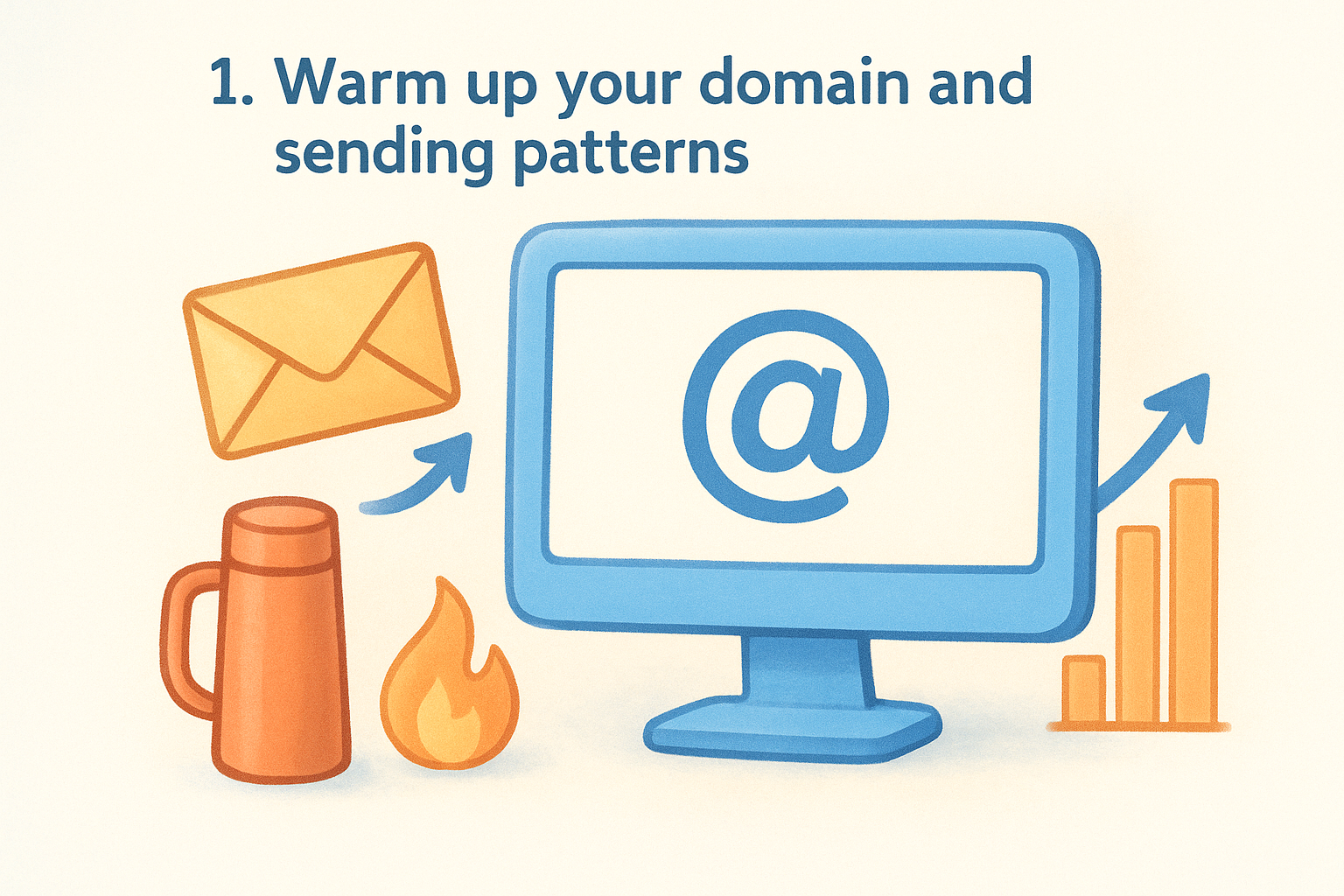
1. Warm up your domain and sending patterns
One of the most common reasons why emails land in spam is straightforward: you sent too many too fast from a domain that hasn't built a sending reputation yet. Inbox providers like Gmail and Outlook track sending behavior closely, and a sudden volume spike from a fresh or dormant domain is a textbook spam signal.
Why it happens
When you register a new domain or start sending from a new address, that domain has zero sending history with inbox providers. Providers use reputation signals built over time to decide whether a sender is trustworthy. If you jump from sending nothing to 500 or 1,000 emails in a single day, spam filters flag that behavior immediately and route your messages to junk before your recipients get a chance to see them.
Inbox providers assign reputation scores to domains and IPs based on historical sending patterns, and a cold domain has no score to defend it.
A domain that sits inactive for months and then suddenly blasts a campaign faces the same problem. Dormant sending history resets trust just like a brand-new domain would, so resuming at full volume after a long pause carries real risk.
Quick checks
Start by reviewing your daily sending volume over the past 30 days to see if you ramped up faster than your domain could handle. You should also check your bounce rate and spam complaint rate inside your email platform. Google Postmaster Tools lets you monitor domain reputation directly for Gmail traffic.
- •Check if your domain is less than 90 days old
- •Look for any sudden spikes in daily send volume
- •Confirm your spam complaint rate stays below 0.1% (Gmail's stated threshold)
- •Note whether you've had any extended gaps in sending activity
Fixes that work
The fix is a structured domain warmup process. You start with a low daily send volume, around 20 to 50 emails per day, and gradually increase it over three to four weeks. Each day, you send a bit more, giving inbox providers time to observe consistent, low-complaint behavior. Vedain CRM's Email Warmup feature automates this over a 21-day period, handling the ramp-up so you don't have to manage it manually.
Preventive best practices
Once your domain is warmed up, keep your daily volume consistent rather than sending large batches in short bursts. Spread your sends across business hours instead of queuing everything at once. If you plan to scale a campaign significantly, treat it like a mini-warmup and increase volume incrementally over several days rather than doubling your send count overnight. Consistency is what builds long-term sender trust.
2. Your SPF record is missing or wrong
SPF (Sender Policy Framework) is a DNS record that tells receiving mail servers which IP addresses are authorized to send email on behalf of your domain. Without it, inbox providers have no way to verify that your message actually came from you, and that uncertainty is one of the clearest technical reasons why emails land in spam.
Why it happens
SPF failures happen when your DNS records don't list all the services you use to send email. If you send through a CRM, an email marketing platform, and your own mail server, each of those services needs to be included in your SPF record. Miss one, and emails sent through that service will fail SPF checks and get flagged or rejected outright.
A single SPF failure can tank deliverability across an entire campaign, not just one message.
Quick checks
You can verify your SPF record using Google Admin Toolbox, which runs a free DNS check against your domain. Look for these specific problems:
- •No SPF record exists at all
- •The record exceeds 10 DNS lookups, which breaks SPF validation entirely
- •Sending services like your CRM or email provider are missing from the record
Fixes that work
Add or update your SPF record through your DNS provider's control panel. A basic SPF record looks like v=spf1 include:yourprovider.com ~all. Replace yourprovider.com with the actual SPF include string from each email service you use. If you are over the 10-lookup limit, use SPF flattening to consolidate multiple includes into direct IP ranges.
Preventive best practices
Every time you add a new email sending tool to your stack, update your SPF record on the same day. Keep a running list of all services authorized to send from your domain so you can audit the record quickly when something changes. A quarterly DNS review keeps your authentication records accurate and your deliverability protected long-term.
3. DKIM signing fails or is not set up
DKIM (DomainKeys Identified Mail) adds a cryptographic signature to every outgoing email, which lets receiving servers verify that the message came from your domain and wasn't altered in transit. When DKIM signing fails or isn't set up at all, that verification breaks down entirely, and it's one of the clearest technical explanations for why emails land in spam.
Why it happens
DKIM failures occur when the private key used to sign your outgoing messages doesn't match the public key published in your DNS records. This mismatch happens most often when you switch email providers, add a new sending service without updating DNS, or let your selector records fall out of sync after a domain migration. The result is that receiving servers see an invalid or missing signature and treat your message with immediate suspicion.
A missing DKIM signature tells inbox providers you haven't proven ownership of your domain, and that alone is enough to route your email straight to junk.
Quick checks
Run your domain through Google Admin Toolbox to confirm whether your DKIM record is published and valid. Watch for these specific problems:
- •No DKIM TXT record exists in your DNS at all
- •The DKIM selector in your DNS doesn't match what your sending service expects
- •Your key length is shorter than 1024 bits (2048 bits is the current recommended standard)
Fixes that work
Log into your email sending platform and locate the DKIM setup section. Your provider will supply a TXT record and a selector name to add to your DNS. Copy both values exactly, publish them through your DNS control panel, and allow up to 48 hours for propagation. Once live, re-run the Google Admin Toolbox check to confirm the signature validates correctly before sending any campaigns.
Preventive best practices
Set up DKIM for every new sending service before you send a single email through it. Run a quarterly DNS audit to confirm all active selectors are still valid, especially after platform migrations, domain transfers, or any changes to your email infrastructure.
4. DMARC is missing or misconfigured
DMARC (Domain-based Message Authentication, Reporting, and Conformance) builds on SPF and DKIM by telling receiving servers exactly what to do when those checks fail. Without it, inbox providers handle unauthenticated mail however they see fit, and that ambiguity is another direct reason why emails land in spam.
Why it happens
When there is no DMARC record published, receiving servers get no policy guidance from you. They see a message that may or may not have passed SPF or DKIM, and with no instruction from your domain, they often route your email to junk. A misconfigured DMARC record creates a similar problem: if your policy doesn't align with your actual SPF and DKIM setup, legitimate emails can still get filtered or rejected.
DMARC also requires alignment, meaning the domain in your From header must match the domain authenticated by SPF or DKIM, not just pass those checks independently.
Quick checks
You can verify your DMARC record by searching your domain's DNS TXT records for an entry starting with v=DMARC1. Check for these common problems before sending any campaigns:
- •No DMARC record exists in DNS at all
- •The policy is set to
p=none, which means no enforcement action is taken on failing mail - •Your
ruatag (reporting address) is missing, so you receive no feedback data on authentication failures
Fixes that work
Publish a DMARC TXT record at _dmarc.yourdomain.com through your DNS provider. Start with p=none and a valid reporting address so you can collect data without blocking legitimate mail. Once reports confirm your SPF and DKIM are passing consistently, move to p=quarantine and eventually p=reject to enforce full protection.
Preventive best practices
Review your DMARC reports regularly using the email address you set in the rua tag. As your authentication setup stabilizes, tighten your policy gradually rather than jumping straight to p=reject, which can block legitimate mail if your SPF or DKIM setup has any gaps.
5. Your sending IP reputation is poor
Every email travels from an IP address to the recipient's mail server. That IP carries its own reputation score, separate from your domain's, and a poor IP score is one of the clearest technical reasons why emails land in spam even when your content and authentication look clean.
Why it happens
Your IP reputation drops when spam complaints, hard bounces, or chronically low engagement stack up against that address consistently. Shared IP plans make this worse because you inherit other senders' behavior from the same server pool, and a bad actor sharing that IP can drag your deliverability down without you doing anything wrong.
Shared IP reputation is one of the hardest deliverability problems to diagnose because the damage comes from senders you have no visibility into.
Quick checks
Check whether your sending IP appears on major blocklists using a lookup tool like Spamhaus. Look for these specific warning signs:
- •Bounce rates consistently above 2% per campaign
- •Delivery failures concentrated at specific providers like Gmail or Outlook
- •Confirmation that you are on a shared IP with no visibility into other users' sending behavior
Fixes that work
Switch to a dedicated IP address through your email sending provider. A dedicated IP means your reputation reflects only your own sending behavior, not that of other tenants on the same server. Before sending at full volume, warm up the new IP gradually over several weeks by starting low and increasing daily sends incrementally.
If a dedicated IP isn't available through your current provider, consider migrating to a platform that offers one. The long-term deliverability gains outweigh the short-term effort of switching tools.
Preventive best practices
Keep bounce and complaint rates low by sending only to engaged, verified contacts and removing unresponsive addresses on a regular schedule. Check your IP against blocklists at least once a month so you catch problems before they compound across multiple campaigns.
6. Your domain reputation is poor or too new
Domain reputation is distinct from IP reputation, though they work together. Inbox providers score your domain based on how recipients interact with your mail over time, and a poor score or no score at all is one of the core reasons why emails land in spam even when your authentication records are perfectly configured.
Why it happens
A brand-new domain starts with zero sending history, which makes it an unknown quantity for inbox providers. Without signal data like open rates, low complaint rates, and clean bounce history, filters default to caution and route your messages to junk. Even established domains can develop a poor reputation if too many recipients mark your mail as spam, if your list contains many inactive addresses, or if your engagement rates have been consistently low for several months.
Inbox providers don't just look at your most recent campaign. They factor in your domain's full sending history when calculating reputation scores.
Quick checks
Review your domain reputation directly using Google Postmaster Tools, which grades your domain as High, Medium, Low, or Bad for Gmail traffic. Watch for these warning signs:
- •Domain rating showing Low or Bad inside Postmaster Tools
- •Consistently low open rates across recent campaigns
- •Your domain is less than 60 days old and you're already sending at high volume
Fixes that work
If your domain reputation is low, treat it like a cold domain and restart a structured warmup. Temporarily reduce daily send volume, focus on your most engaged contacts, and let positive interaction signals rebuild your score gradually over four to six weeks.
Preventive best practices
Send to engaged segments first when launching new campaigns, and suppress contacts who haven't opened in 90 days or more. Consistent positive engagement is what keeps your domain reputation healthy over the long term.
7. You are on a blocklist or denylist
Landing on a blocklist is one of the most immediate explanations for why emails land in spam, or stop reaching inboxes entirely. Blocklists (also called denylists) are databases of IP addresses and domains flagged for sending unwanted or abusive mail, and inbox providers check against them automatically before accepting any message you send.
Why it happens
Blocklist listings typically result from high spam complaint rates, sending to known spam traps, or a sudden volume spike that looks automated to filtering systems. Some listings happen because a previous owner of your IP address or domain had poor sending habits, and that history carries forward to you without any warning. Either way, the moment your domain or IP gets listed, delivery rates drop sharply across multiple providers at once.
A single spam trap hit can trigger a blocklist entry and keep you flagged for weeks without any notification sent to you directly.
Quick checks
You can confirm whether your domain or IP address appears on a major blocklist using Google Postmaster Tools for domain-level reputation signals. Check these specific points:
- •Spamhaus, Barracuda, and SURBL are three of the most widely referenced blocklists by inbox providers
- •Look for delivery failures concentrated at specific mail providers, which often signals a listing rather than an authentication issue
- •Review recent bounce messages for error codes like 550 or 521, which indicate active rejections tied to a blocklist entry
Fixes that work
Each blocklist runs its own delisting request process, and you need to follow it separately for every list you appear on. Fix the underlying cause first, whether that's a complaint rate spike or a spam trap hit, before you submit any request. Submitting a delisting request without addressing the root problem typically results in an immediate re-listing within days.
Preventive best practices
Run a monthly blocklist check against your sending domain and primary IP address so you catch any listings before they compound across multiple campaigns. Keeping your complaint and bounce rates consistently low through regular list hygiene is the most reliable way to stay off blocklists entirely.
8. Recipients mark your emails as spam
When real people actively click "Mark as spam," they send a direct negative signal to inbox providers. This is one of the most damaging reasons why emails land in spam, because it tells filtering systems that recipients don't want your mail, and those systems respond by routing your future sends to junk before anyone even opens them.
Why it happens
Complaint signals accumulate when recipients feel misled, surprised, or simply annoyed by what you sent them. Common triggers include sending to people who never opted in, emailing too frequently, or failing to clearly identify who you are in the sender name and subject line. Some recipients click "spam" simply because they can't find an easy unsubscribe option and treat the spam button as their quickest exit.
Gmail's published threshold is a spam complaint rate above 0.10%, and crossing it consistently puts your entire sending domain at risk of bulk filtering.
Quick checks
Monitor your complaint rate inside Google Postmaster Tools to track how Gmail recipients respond to your campaigns. Look for these red flags before they compound:
- •Complaint rate climbing above 0.08% on any single campaign
- •A spike in unsubscribes immediately after a send, which often precedes complaint increases
- •Emails going to cold contacts who have no prior relationship with your brand
Fixes that work
Add a clear, one-click unsubscribe link to every email and place it where recipients expect it, typically in the footer. Reducing your sending frequency to highly engaged segments lowers the chance that recipients feel overwhelmed and reach for the spam button as a quick solution.
Preventive best practices
Build a preference center where contacts can choose how often they hear from you. Sending relevant, expected content to people who asked for it is the most reliable way to keep complaint rates below the thresholds that trigger bulk filtering across your domain.
9. Your list hygiene is hurting engagement
Low engagement is one of the quieter reasons why emails land in spam, but it causes just as much damage as a missing authentication record. Inbox providers like Gmail track how recipients interact with your messages over time, and when your open rates drop consistently, those providers start routing your future mail to junk before recipients even get a chance to see it.
Why it happens
Sending to inactive or disengaged contacts drags your engagement metrics down across every campaign you run. Over time, your list accumulates people who signed up months or years ago and stopped opening your emails entirely. Every send to that unresponsive segment lowers your average engagement signal, which inbox providers interpret as clear evidence that your mail is unwanted.
Gmail and other major providers weigh recent engagement heavily when deciding whether to route your next campaign to the inbox or the spam folder.
Quick checks
Review your email platform's engagement data and flag contacts who haven't opened any of your last 10 sends. Pay attention to these specific warning signs before your next campaign goes out:
- •Contacts with zero opens in the past 90 days
- •Addresses that have never opened a single email from your domain
- •Segments where your open rate sits below 15% across multiple campaigns
Fixes that work
Run a re-engagement campaign targeted specifically at your dormant contacts. Send a short, direct message asking whether they still want to hear from you, and make it easy to either confirm interest or unsubscribe in one click. Anyone who doesn't respond within two weeks should be removed from your active sending list immediately.
Preventive best practices
Set up an automated suppression rule that moves contacts into a dormant segment after 60 to 90 days of no opens or clicks. Always send to your most engaged contacts first when launching new campaigns so that initial positive engagement protects your sender reputation before you expand to broader, less active segments.
10. Bad addresses and spam traps slip into your list
Spam traps are one of the least visible reasons why emails land in spam, because they look exactly like legitimate addresses. These are email addresses operated by inbox providers and anti-spam organizations specifically to catch senders with poor list hygiene, and hitting one can trigger a blocklist entry fast.
Why it happens
Spam traps fall into two categories. Pristine traps are addresses that have never belonged to a real person and exist purely to identify senders who scrape or purchase lists. Recycled traps are old addresses that inbox providers reactivated after a period of bouncing, meaning you collected them legitimately but never cleaned them out. Both types indicate that your list contains contacts you should have removed long ago.
A single spam trap hit is enough to damage your domain reputation and trigger a blocklist listing within days.
Quick checks
Pull your bounce and engagement data from your email platform and look for patterns that indicate stale or invalid addresses. These are the specific warning signs to act on before your next send:
- •Hard bounces above 2% per campaign
- •Addresses with no opens across your entire sending history
- •Contacts you imported from purchased or scraped lists rather than opt-in sources
Fixes that work
Run your full list through an email verification service that checks each address for validity, activity, and known trap patterns. Remove every hard bounce immediately after it occurs, and suppress any address that has never opened a single message from your domain across at least 10 sends.
Preventive best practices
Never send to purchased or rented lists under any circumstances, as these are the single most reliable source of spam trap hits. Verify new leads at the point of capture using a real-time validation check so invalid addresses never enter your list in the first place.
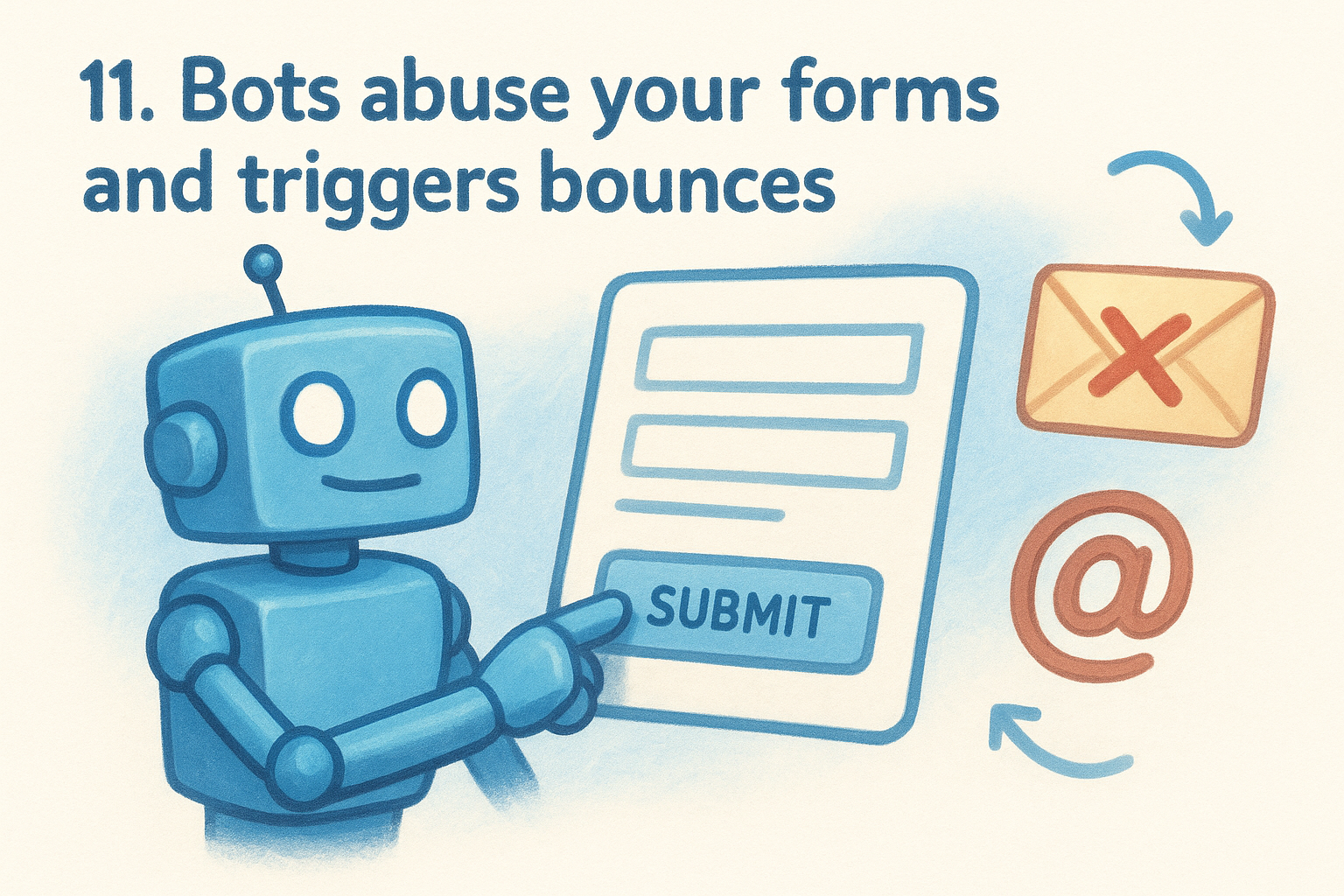
11. Bots abuse your forms and triggers bounces
Bot-submitted forms are a surprisingly common reason why emails land in spam, and most sales teams don't catch it until the damage is already done. When automated bots fill out your lead capture forms with fake or malformed email addresses, those addresses flow straight into your sending list and get emailed immediately by your automation triggers, creating a flood of bounces that tanks your sender reputation fast.
Why it happens
Bots crawl publicly accessible forms and submit them at scale, often targeting contact forms, newsletter signups, and lead generation pages that lack any form of submission verification. Each fake submission generates an automated email from your CRM to an address that either doesn't exist or belongs to a spam trap. A high bounce rate from bot-injected contacts signals to inbox providers that your list is poorly managed, and your deliverability takes the hit within days.
Even a short bot attack that injects a few hundred fake addresses into your list can push your hard bounce rate above the 2% threshold that triggers spam filtering.
Quick checks
Review your form submission logs and look for patterns that indicate bot activity rather than real human entries. Watch for these specific warning signs:
- •Submissions arriving in rapid bursts within seconds of each other
- •Contact names or email addresses filled with random characters or obvious nonsense
- •A sudden spike in hard bounces immediately following a new form going live
Fixes that work
Add a CAPTCHA or invisible bot protection layer to every public-facing form you operate. Most form builders support Google reCAPTCHA natively, and enabling it takes only a few minutes. You should also activate a real-time email verification check at the point of form submission so invalid addresses never trigger your automation sequences in the first place.
Preventive best practices
Enable double opt-in confirmation for every form-triggered email sequence so that only real people who click a verification link enter your active list. Audit your form submission data monthly and set an alert if your bounce rate climbs above 1% after any new campaign or form launch.
12. Your sender identity signals look suspicious
Inbox providers don't just evaluate your authentication records and list hygiene. They also look closely at who you appear to be as a sender, and when those signals feel inconsistent or deceptive, filtering systems treat your message as a threat. Mismatched sender names, unfamiliar From addresses, and poorly configured reply-to fields are all part of why emails land in spam even when your technical setup looks clean.
Why it happens
Spam filters analyze the relationship between your From name, From address, and the domain you're sending from. When those elements don't align, it looks like someone trying to impersonate a trusted brand or obscure their real identity. A common trigger is using a display name that doesn't match your domain, such as calling yourself "Sales Team at Acme" while sending from a generic Gmail address.
Changing your From address frequently across campaigns creates a similar problem. Inbox providers expect consistency, and a sender whose identity shifts from send to send raises the same red flags as an unknown contact trying to gain trust through impersonation.
Inbox providers treat inconsistency in sender identity as a spoofing signal, and even one mismatch between your display name and sending domain can trigger immediate filtering.
Quick checks
Review your From name and From address across your last five campaigns to confirm they match. Look for these specific warning signs:
- •Your From address uses a free webmail domain like gmail.com or yahoo.com instead of your business domain
- •Your display name changes between campaigns or doesn't reflect your actual business name
- •Your reply-to address points to a different domain than your sending address
Fixes that work
Standardize your From name and From address across every campaign you run. Send only from your verified business domain, and keep your reply-to address on that same domain. This consistency tells inbox providers that a real, identifiable organization stands behind every message you send.
Preventive best practices
Create a sender identity checklist for your team that confirms the approved From name, From address, and reply-to format before any new campaign launches. Reviewing these fields takes under five minutes per send and protects your deliverability from avoidable identity mismatches that quietly undermine months of list-building work.
13. Your message content and structure trip filters
Even when your authentication is clean and your list is healthy, the actual content of your email can still explain why emails land in spam. Spam filters scan every element of your message, from the subject line to the HTML structure, and certain patterns trigger automatic filtering regardless of your sender reputation.
Why it happens
Filters flag content that matches patterns associated with spam, including all-caps subject lines, excessive punctuation, certain high-risk phrases like "free" or "guaranteed," and a heavy image-to-text ratio with very little readable text. Emails built almost entirely from one large image with minimal HTML text look suspicious because spammers commonly hide their message inside images to avoid text-based keyword scanning.
A single spam-trigger phrase in your subject line can override an otherwise clean sending record and send your email straight to junk.
Quick checks
Review your recent campaigns against these common filter triggers before your next send:
- •Subject lines using all caps or excessive exclamation marks
- •A single image with fewer than 50 words of visible HTML text surrounding it
- •Links pointing to domains different from your sending domain
- •No plain-text version paired with your HTML email
Fixes that work
Write subject lines that describe the email clearly without sensational language. Maintain a healthy text-to-image ratio by including enough readable HTML content around any images you use. Always send a plain-text version alongside your HTML version, since missing plain-text is itself a spam signal for many filters.
Preventive best practices
Before any campaign goes live, run your email through a content test inside your sending platform to flag potential trigger phrases. Keep your HTML clean and lightweight, avoid embedding tracking pixels from unknown third-party domains, and review your link destinations to confirm they all point to your primary business domain.
Where to go from here
Now you know exactly why emails land in spam and what to do about each cause. The 13 reasons covered in this article range from missing DNS records to content patterns that trigger filters automatically, but they all share one thing: every single one is fixable with the right process and tools in place.
Start with authentication. Get your SPF, DKIM, and DMARC records verified and aligned before you touch anything else. Then warm up your domain properly, clean your list, and audit your sender identity and content before each campaign goes out. Tackle the technical foundation first, and the content and engagement fixes become far more effective.
If you want a platform that handles email warmup, automated sequences, and deliverability monitoring without requiring a separate tool for each, start your free trial with Vedain CRM and see how much easier it is to land in the inbox consistently.