We built Vedain CRM because we kept hearing from sales teams frustrated by rising CRM costs and feature gates, the exact reasons many people cancel Pipedrive in the first place. So we understand why you're here, and we want to help you move forward quickly.
Below, you'll find the exact steps to cancel your Pipedrive account, what happens to your data afterward, and key details about billing and refunds you should know before pulling the trigger.
Before you cancel, check these account details
Before you go through the steps to cancel your Pipedrive subscription, spend a few minutes reviewing your account. Canceling without checking first can mean losing access to data you still need, missing a billing cycle refund window, or hitting a wall because you don't have the right permissions to cancel at all.
Who has permission to cancel
Only the Company Owner in Pipedrive can cancel a subscription. If you're an admin but not the owner, you won't see the cancellation option in billing settings. Check your role by going to Settings > Manage Users and confirming your account shows "Owner" status. If you're not the owner, you'll need to contact the person who is before you move forward.
If you're unsure who the owner is, look for the email address used during the original Pipedrive signup - that person holds owner access by default.
What happens to your data
Pipedrive gives you access to your data until the end of your current billing period after you cancel. Once that period ends, your data gets deleted and you can't recover it. This means you need to export everything, including contacts, deals, and activities, before your subscription officially ends. Pipedrive supports CSV and Excel exports for most data types, so download those files before you cancel, not after.
Your active billing cycle
Check whether you're on a monthly or annual plan before you do anything else. Pipedrive does not offer prorated refunds for annual plans if you cancel mid-cycle. On a monthly plan, your access continues until the end of the current month. Knowing this upfront helps you time your cancellation to get the most value from what you've already paid.
Step 1. Confirm your plan, billing, and owner access
Before you cancel Pipedrive subscription, you need to confirm three things: which plan you're on, your next billing date, and whether you actually hold owner access. Taking two minutes here prevents surprises later.
Find your current plan and billing date
Log into Pipedrive and go to Settings > Billing. Your current plan name, billing cycle (monthly or annual), and next renewal date all appear on this page. If your renewal is in a few days, you might want to cancel today to avoid being charged again. Annual plan holders won't get a refund for unused months, so note your cycle end date and plan to use the account until that date.
Check your billing email address on this page too. Pipedrive sends the cancellation confirmation to the billing contact, not necessarily your login email.
Confirm you hold owner access
Go to Settings > Manage Users and look at the role listed next to your name. Only the account listed as "Owner" can complete the cancellation. If you see "Admin" instead, contact the original account creator and ask them to either cancel or transfer ownership to you before proceeding.
Step 2. Export your data and save key settings
Before you cancel Pipedrive subscription, export every piece of data you want to keep. Pipedrive permanently deletes your records when the billing period ends, so download everything before you hit cancel.
Export your contacts, deals, and activities
Go to each module in Pipedrive and export records individually. Navigate to any list view, click the "Export" button in the top right, and download as CSV or Excel. Here's what to export:
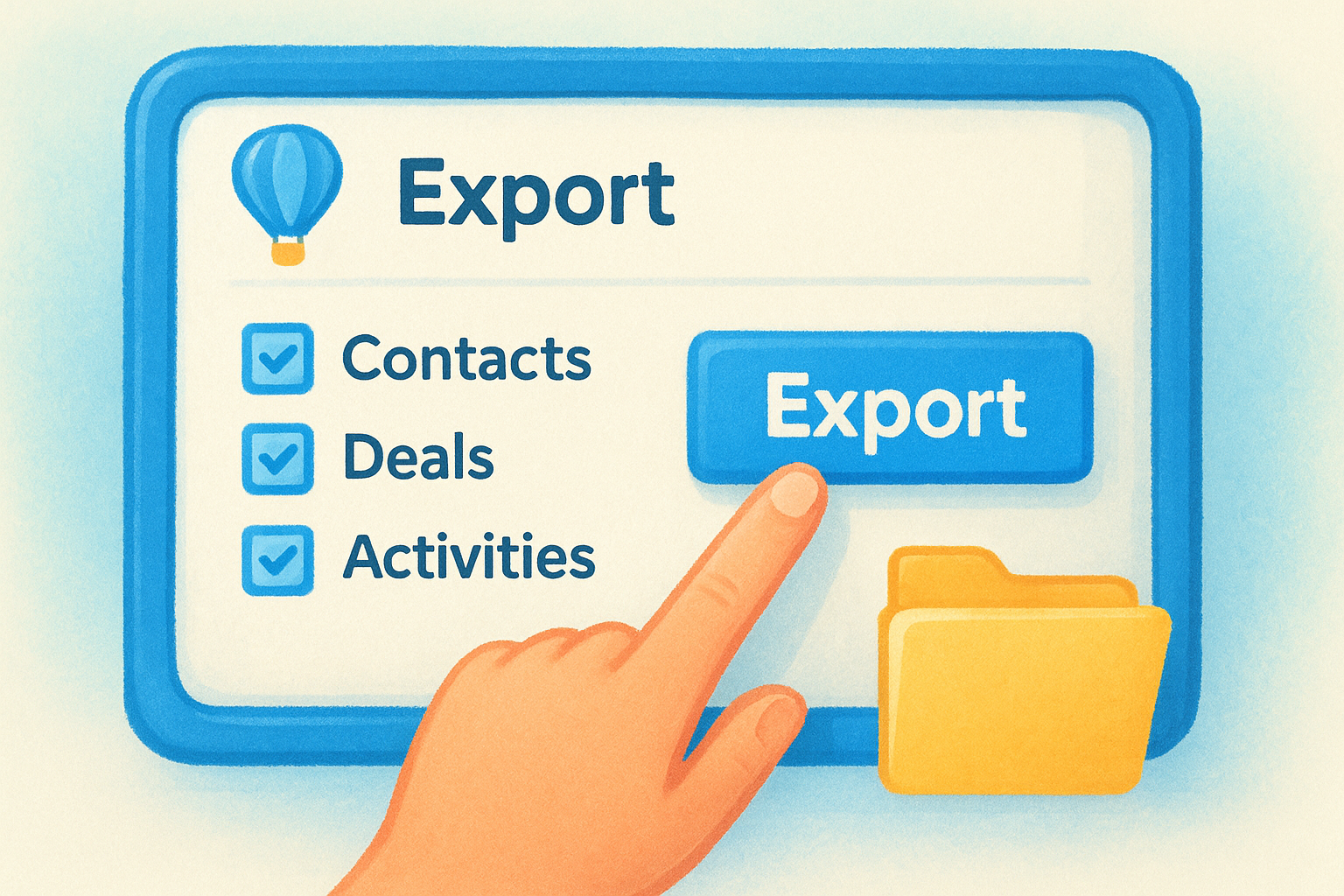
- •Contacts - names, emails, phone numbers, and notes
- •Deals - pipeline stage, deal value, and attached files
- •Activities - call logs, meetings, and completed tasks
- •Organizations - company records linked to your contacts
Save all export files to a shared folder in Google Drive or OneDrive before you move to the next step.
Note your custom fields and workflow settings
Custom fields and automation workflows don't come through in a data export, so document them manually. Go to Settings > Data Fields and screenshot every custom field name and type. Then open Settings > Automation and write down each workflow's trigger, conditions, and actions. Saving this documentation now prevents you from rebuilding everything from scratch when you set up your next CRM, and it usually takes under 10 minutes.
Step 3. Cancel your Pipedrive subscription
Now that your data is backed up and your access is confirmed, you're ready to cancel your Pipedrive subscription. The process takes under two minutes once you're in the right place, but Pipedrive puts the option several menus deep, so follow the steps below exactly.
Navigate to the billing page
Log into your Pipedrive account as the account Owner. From there, follow these steps to reach the cancellation option:
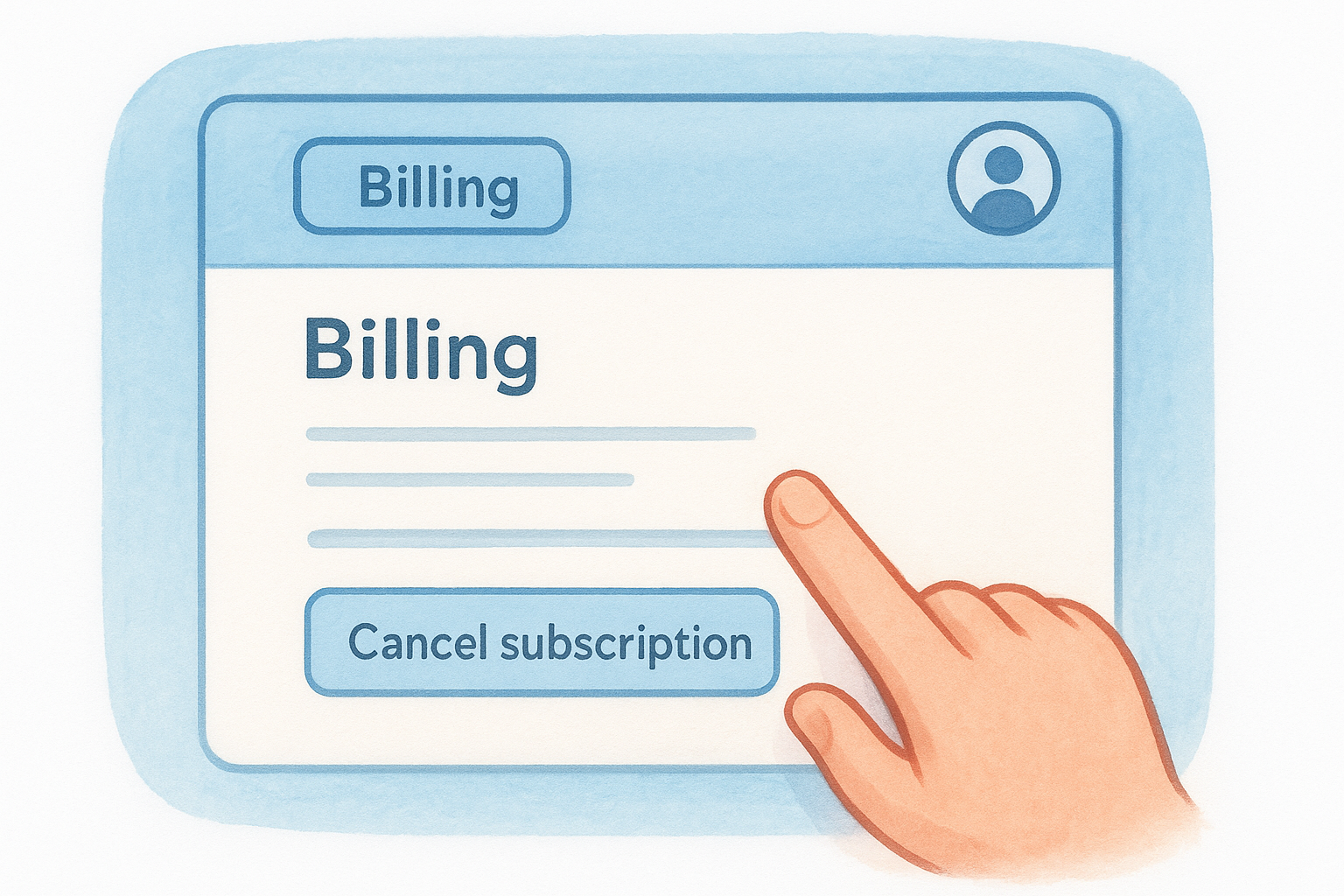
- Click your profile icon in the top right corner of the screen
- Select "Billing" from the dropdown menu
- Scroll to the bottom of the Billing page to find the "Cancel subscription" link
If you don't see a "Cancel subscription" link, you are not logged in as the account Owner.
Complete the cancellation steps
Pipedrive walks you through a short cancellation flow after you click the link. You'll see a screen asking why you're leaving, with several options in a dropdown menu. Select the reason that fits your situation and click continue.
On the next screen, click "Cancel subscription" a second time to confirm your decision. Pipedrive finalizes the cancellation immediately and sends a confirmation email to the billing contact on your account. You do not need to call support or wait for approval.
Step 4. Verify cancellation and stop future charges
After you cancel your Pipedrive subscription, confirm everything went through correctly. Pipedrive should send a cancellation confirmation email to the billing contact address within a few minutes. Open that email and check that it shows your plan name and cancellation date. If the email doesn't arrive within 10 minutes, check your spam folder before assuming the cancellation didn't register.
Check your billing page for confirmation
Log back into Pipedrive and go to Settings > Billing. Your account status should now show as "Canceled" or display your access end date instead of a renewal date. If the page still shows an upcoming charge, take a screenshot and contact Pipedrive support immediately with your confirmation email as proof.
Keep the cancellation confirmation email in a dedicated folder so you have documentation if an unexpected charge appears on your next statement.
Review your payment method for pending charges
Check your credit card or bank statement within 3 to 5 business days after canceling. If a charge from Pipedrive appears after the cancellation date, contact Pipedrive support right away with the following details:
- •Your cancellation confirmation email
- •The exact cancellation date
- •The charge amount and transaction date
Do not wait more than 30 days to raise the issue.
Quick wrap-up
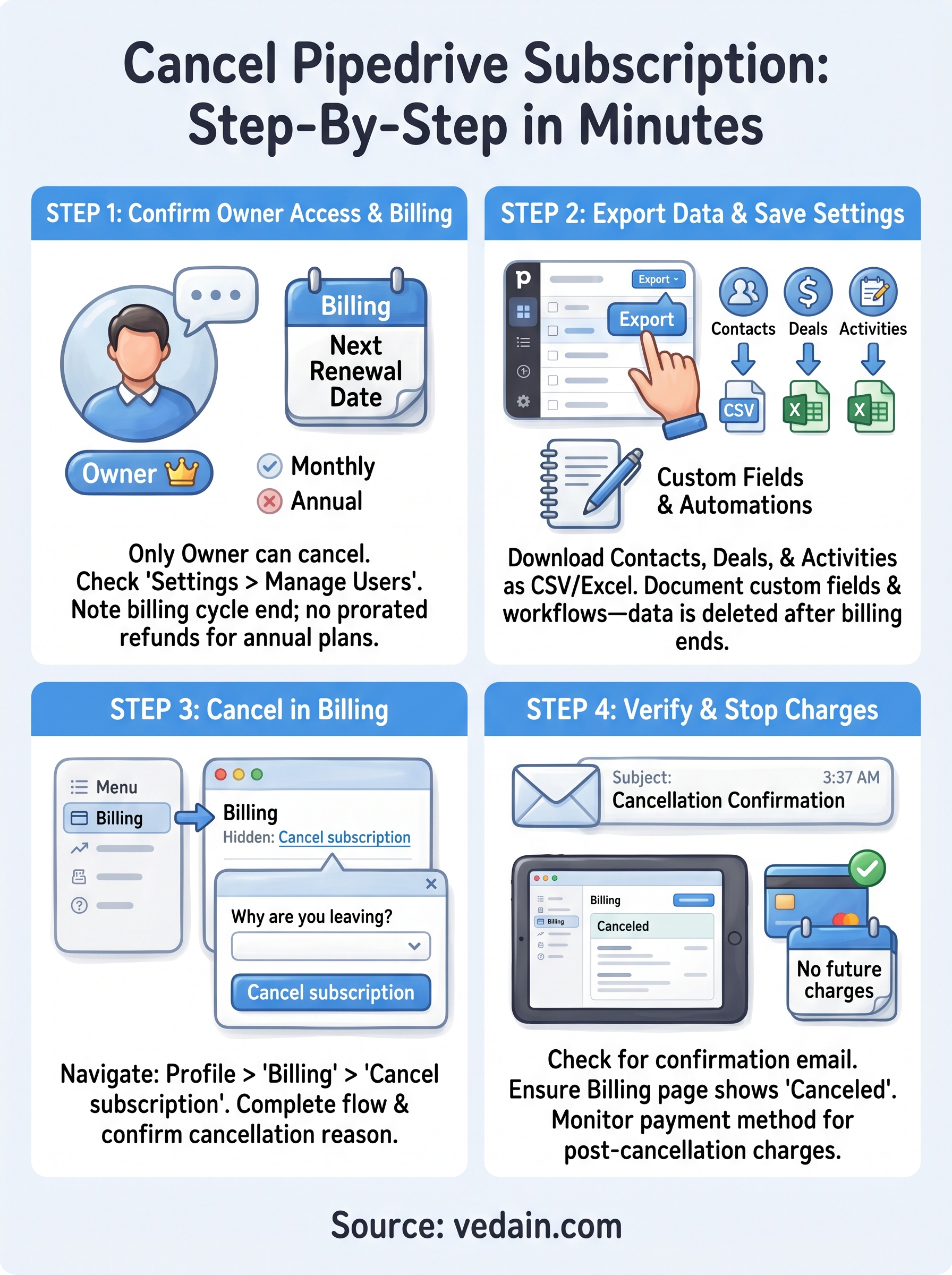
Canceling a Pipedrive subscription comes down to four steps: confirm your owner access and billing cycle, export your data, complete the cancellation flow in Settings > Billing, and verify the confirmation email arrived. The whole process takes under 10 minutes if you follow the steps in order and don't skip the data export.
If you canceled because Pipedrive's pricing didn't match the value you were getting, you're not alone. Many sales teams move to a CRM that gives them all the features at a flat rate without feature gates or surprise charges. Vedain CRM gives you pipeline management, email sync, automation, and AI tools for $10 per user per month, with no credit card required to start. Set it up in under 5 minutes and bring your exported Pipedrive data with you.